



space-time
23 de septiembre de 2025
Great router/AP! The 10Gbps port runs OK at 2.5Gbps. Web config page IP is in the Tether app.
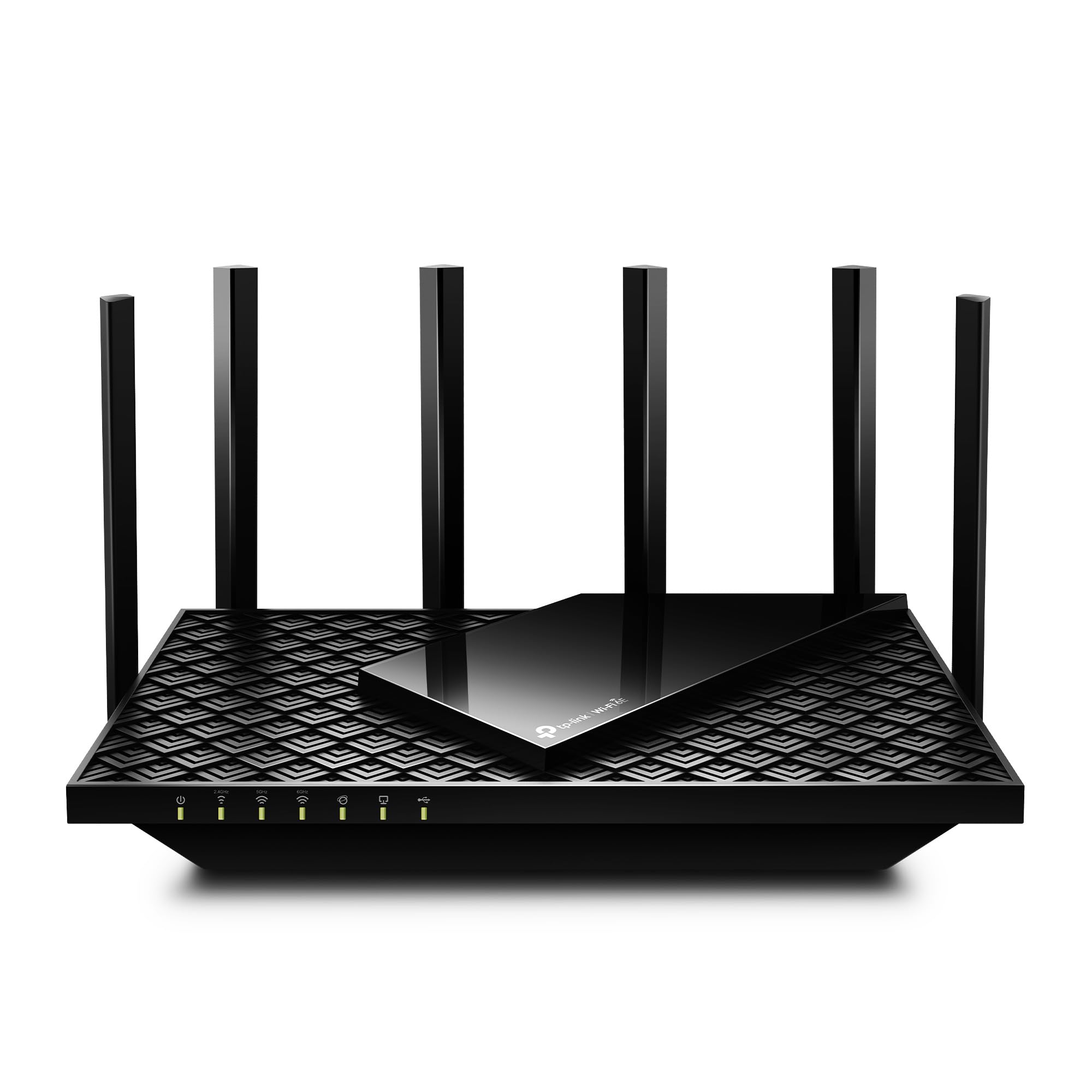
I bought this TP-Link Archer BE550 Pro to use in Access Point mode, fed by a 2.5 Gbps ethernet cable from my AT&T fiber router. Replaces a decade-old Wi-Fi 5 dual-band Netgear Nighthawk extender/AP to get Wi-Fi 7 Tri-Band. The first big question I had, that nearly prevented me from ordering this one, is that 10Gbps WAN port in back. Is it multi-gig, or is it fixed at 10Gbps? Nowhere on the box or on the webpage says. Even more confusing since other similar TP-Link models have a separate 2.5Gbps WAN/LAN port marked along with three 2.5Gbps LAN ports. Well turns out the answer from TP_Link customer support is yes, the 10 Gbps IS a multi-gig port that specifically will work fine with 2.5 Gbps (and I'm assuming 5Gbps and 1Gbps but I didn't ask) and linked up just fine with my 8 port 2.5Gbps TP-Link ethernet switch. All of this means this Archer BE550 Pro router is future-proof, since I eventually expect to upgrade to 10Gbps throughout the house in a couple of years when the prices come down. This BE550 Pro router comes with a short funky flat ethernet cable with shielded RJ45 connectors that I'm sure must be rated for 10Gbps (but works great at 2.5Gbps, of course). All you need for 2.5 Gbps though is Cat5e or Cat6 (what I'm using in the house) cable.Another hiccup is how to access this router's web setup page, or more specifically, how to find out what IP address it landed at on your network to do that. The Tether app does a great job with initial setup and some of the basic settings, including the ability to switch from router mode to access point mode. But then...anyone who has spent years with routers will say "where are the rest of the settings" and assume the the router will probably come up with a settings web page with more at its IP address. But where? The AT&T router is at 192.168.3.1 (I use a .3 subnet on the publicly un-routable 192.168.x.x for home network) but remember this is in Access Point mode, so the BE500 Pro IP will be somewhere else. Running a IP scanner doesn't really help much, nothing to ID the device, which by default will land in your DHCP IP block (I run both static IP and DHCP blocks). Turns out the answer is in the Tether app. Click on its entry under the first "My Devices" screen, THEN click right on the picture of the router itself on the next screen. That will come up with an info screen and on there will be the Archer BE550 Pro's IP address. Just log into that IP in your browser and use your TP Link website password for the password. You are in! :) The web setup pages do have a pretty extensive list of settings. So far I'm very impressed with this router, in all three bands, and especially the IoT setup. I'm using 2.4 GHz and 5Ghz IoT bands for the solar panels, Ring doorbell, water softener, and remote control of a Mitsubishi mini-split A/C system. The Wi-Fi 7 6Ghz band is working great to a cell phone and an external Tri-band Wi-Fi adapter on a laptop. The Tether app alerts every time a new device has joined one of the networks, which is handy. Recommended!!Ver másVer menos
7 personas la encontraron útil