



Zed
GMKtec K12 MiniPC:Ryzen 7H255+780M GPU (Fast, Expandable, Colorful, and saves Electricity Cost!)
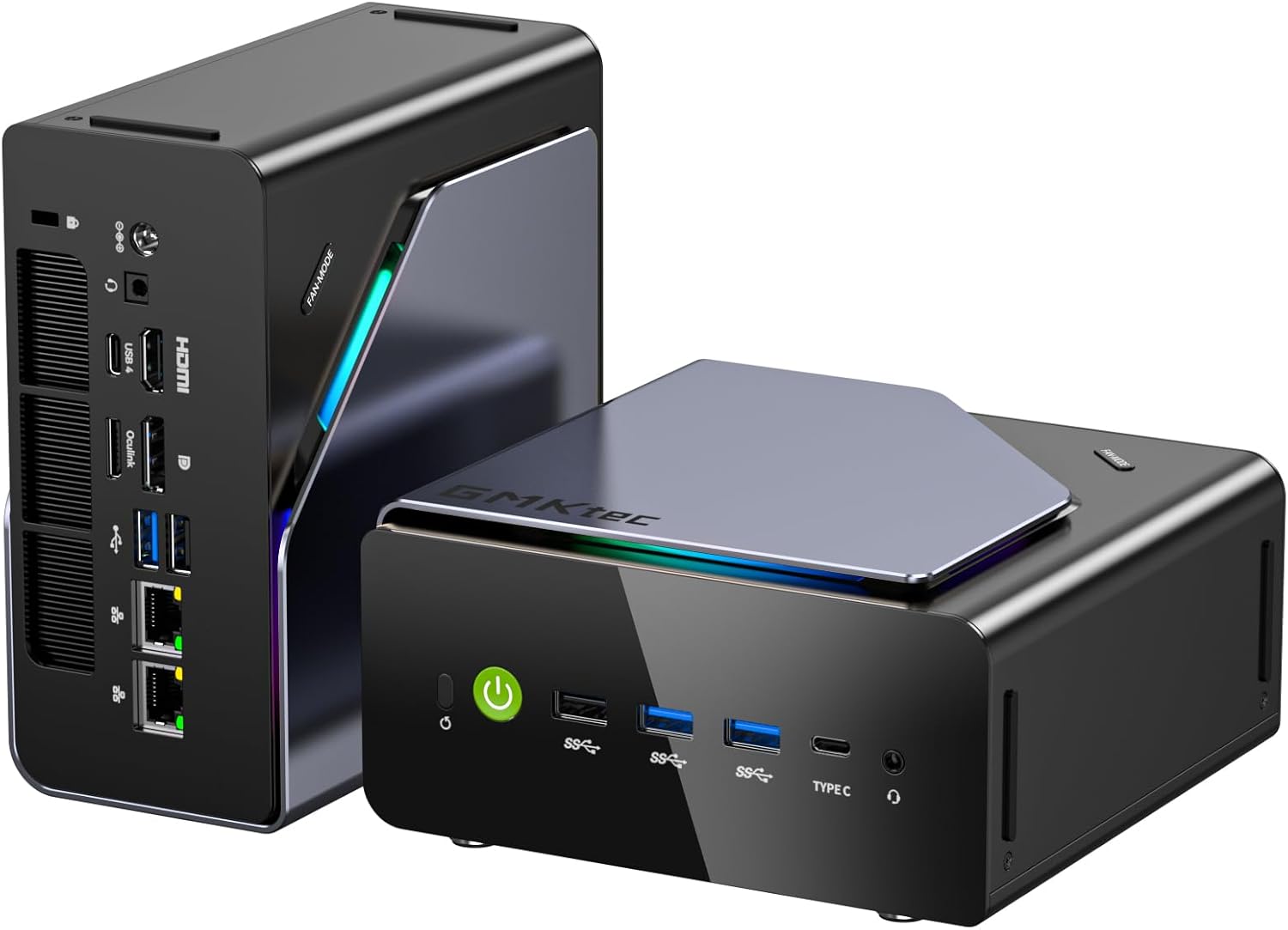
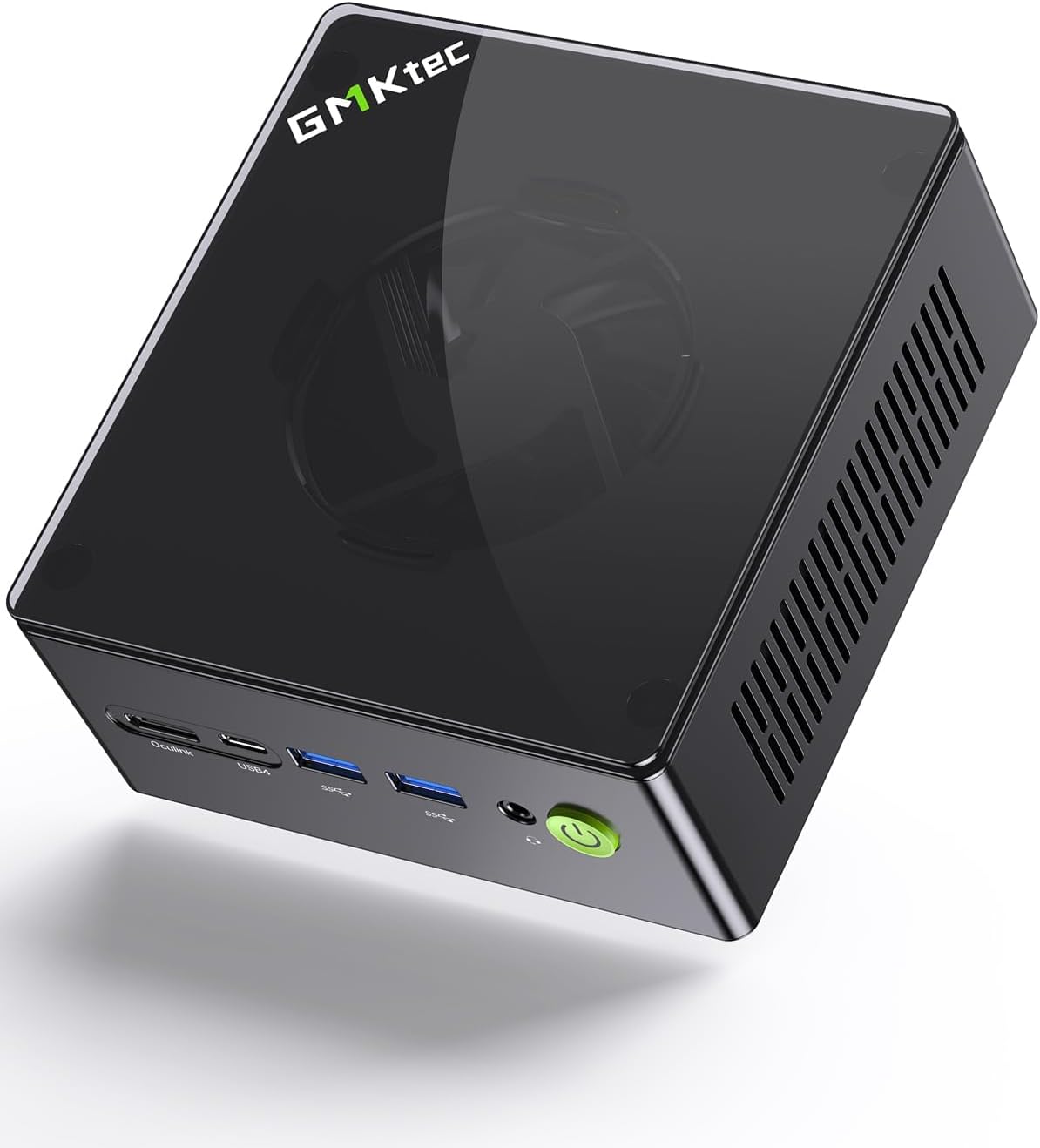
I spent a lot of time checking this K12 out, and now have a good understanding of it. One big point is that this K12 MiniPC is "Rock-Solid". It never crashes, and I 'push' the limits as best I can when I test. And I tested a lot. No matter how hard I pushed it, it just kept going, seemingly effortlessly. I like it when I can't find a way to make a new PC crash.Reliability is important to me, and it delivered on that.Another nice feature is that the included Windows 11, 24H2 does not require a Microsoft account to use. I never use that, so I liked not having to figure out how to 'get around that'. GMKtec just took care of that where no Microsoft account is needed to get going. That is one less hassle, and I appreciate not having to deal with figuring out a workaround. So getting into Windows was super easy and smooth.See below for more details of my experiences.CPUI was not initially sure what a Ryzen 7H255 was. When I looked into it I found it is very similar to a Ryzen 7, 8845HS. Ok, that sounds good since the Ryzen 7, 8845HS is one of the faster processors I had so far tested (prior to this K12 MiniPC). However, the K12 is faster then my 8845HS computer.On the site CPUBENCHMARK.net, the Ryzen 7H255 has a CPU mark of 30410, whereas the older Ryzen 7 8845HS is rated 7 percent slower at 28447. My testing actually yielded even higher benchmarks. I got 31766 using their “Performance” setting which puts this about 12 percent faster. Or put another way, it runs at 112 percent of the 8845HS.They both have the same Cache sizes including 16MB of L3 Cache. They both include Radeon 780M Graphics, however Notebookcheck.net has the Ryzen 7H255 as being 5 percent faster in 3DMark graphics performance then the Ryzen 7 8845HS, and also even beats the Ryzen 9 8945HS by 2 percent.The Ryzen 7H255 runs at up to 4.9 GHz.POWER USAGEGMKtec has three settings (in BIOS) for power usage, ‘PERFORMANCE’ runs at up to 70 Watts. ‘BALANCED’ runs at up to 54 Watts, and ‘QUIET’ runs at up to 45 Watts.Keep in mind, that overall, this K12 just ‘sips’ power. Most of the time my Watt usage (not doing a benchmark) was roughly just 3 to 6 Watts. That means the K12 can run 16 processes, all at the same time, on only about 5 watts if not being stressed. I still have computers with 750 Watt power supplies. This K12 has markedly higher performance on about one-tenth, to one-twentieth the power usage of those older desktops I have worked with. That turns into significant money savings. Some (like me) keep their computer on all the time. If we assume a typical saving of 100 watts less power use for the K12 compared to some big desktop computer you are using, then that becomes 876 Kilowatt Hours per year, and where I live that costs me an extra $385, that I can save by switching to the K12 MiniPC, and the kicker is that it has better performance, is much smaller, is quieter, and is faster. Essentially, if you use an older Desktop computer, there is a good chance that switching to a MiniPC such as the K12 will have it pay for itself after a year or so.GPUThis Ryzen 7H255 includes an integrated very powerful GPU called the 780M. This GPU has 12 RDNA 3 cores, running at up to 2.6 GHz. I tested this GPU that comes with the K12 MiniPC against other PC’s and Graphic cards where I have a good database on performance. This K12 GPU tests better in 2D and about the same in 3D as the following dedicated Graphics cards:AMD RX580 8GBNVIDIA GTX 1650And the K12 test almost as fast in 3D as an AMD RX590 as well.Just as a rough cost evaluation. I just checked, and an NVIDIA GTX1650 with 4GB, or 6GB, costs between $200, and $400 dollars currently.‘VRAM’Now, what is interesting is that the K12’s integrated GPU, allows you to select the amount of Video dedicated RAM, from half a Gigabyte, all the way up to 16GB. (This comes from your RAM, however, since the K12 comes with 32GB of DDR5 RAM, it effectively means no decrease in performance to the K12’s Processing Power, since it would always have left between 16GB, and 31GB for its other tasks.) Whereas, if you spend $300 to get an NVIDIA GTX1650 with 4GB of VRAM, then that is it, you cannot increase it.BIOSWith the K12, you go into BIOS (by hitting the ESC key when it boots, go to the ADVANCED tab at the top, go down to GFX Configuration, go to iGPU Configuration and change it from AUTO to UMA_SPECIFIED, then below that is UMA Frame buffer Size, select that and pick the size of the GPU VRAM between 512MB, to 16GB). I set mine at 4GB. That still leaves me 28GB Ram which is way more then needed, however, it feels good to have the luxury of extra Ram.What is literally Crazy is that I have 3D benchmarks on the RYZEN 9 7900X and the RYZEN 7, 7700, and it may be hard to believe, however, the K12 with its included GPU, tests at over Four times the speed in 3D then either of those cutting edge chips. (The reason why is that AMD apparently crippled the GPU in those expensive chips to presumably make you buy an expensive separate Graphics card for some $200-$500 dollars.) Here in the K12, you get a GPU included that tests at over 400 percent of the 3D Mark scores of the above Ryzen 7, 7700, and Ryzen 9, 7900X, without having to buy a separate Graphics card.OCULINK and External GPUSince we are on the subject of Graphics and GPU’s, I think I should add that there is an important feature that comes with the K12 MiniPC which is called “OCULINK”. This is a newer connection standard. By purchasing for example an External GPU, you simply connect it to the K12 via an OCULINK cable, and you have the Power of a very substantial Graphics card, such as if you want super hi-resolution gaming. So, if you wondered if the K12 MiniPC was limited compared to a ‘big’ PC, in fact it is quite expandable. That OCULINK port (and the USB-4 port as well) give the K12 a way to quickly transfer data at speeds we usually associate with full size expensive Desktop Computers. To be specific, the USB-4 port allow for transfer at 40gbps. And the OCULINK port is even faster at 64gbps. (Compare this to USB-3 which transfers at 5gbps). So OCULINK is 13 times the speed of USB-3. (However, the K12 has faster USB-3, it uses USB-3.2 ‘GEN2’ which runs at twice the speed of USB-3.1).External OCULINK GPU packageFor example, GMKtec has an External Graphics Card Package (called the GMKtec AD-GP1) which connects with the K12’s OCULINK Port. This self contained package includes an AMD Radeon 7600M-XT GPU with 8GB of its Vram, its own 240 Watt power supply, and Four high resolution Monitor connections via Two HDMI-2.1 ports, and Two DisplayPort-2.0 ports, as well as USB-4 which also does Power Delivery, and of course on OCULINK port for connecting to the K12. All of these four video outputs allow for 4K at 120Hz, or 8K at 60 Hz video resolutions. This allows the K12 to work even for those wanting cutting edge Graphics beyond the already integrated 780M GPU. (Currently, the AD-GP1 is priced at $460).The OCULINK port by the way is like an internal PCIe 4.0x4 connection, running at cutting edge 64Gbps which is the same as PCIe4.0x4 speed and is really fast.Its like you get to Plug a fast PCIe card into the K12 using OCULINK. (It just sits outside instead of inside the case.)I checked and by adding for example the AD-GP1 7600M-XT video card to the K12, the total graphics power would approach 400% of the included already powerful 780M GPU. A rough way to characterize this is that the included 780M GPU gives you good 1080p Gaming, whereas using OCULINK and for example, the GMKtec AD-GP1, you would be able to do 4K gaming. For my current uses, I am really pleased with the performance of the included 780M, it is very fast.APPEARANCE, IMPRESSIONMy initial impression upon seeing this K12 MiniPC is that it is substantial. It has a nice heft to it, and comes in a larger rectangular box as if to hint at something powerful inside compared to a smaller, ‘generic’ MiniPC. When opening this larger box, you are presented with an attractive silvery-grey metal cover over a black plastic case which is somewhat larger then other MiniPC’s I have worked with. The attached metal cover gives a more premium look to the K12 when compared to smaller MiniPC’s that do not have cases enhanced with metal. Under that Metal cover are two fans. A bottom CPU fan that is small, and also a top fan that is larger with white blades and beautiful LED colors. There is a button right on top of the K12 that says “FAN MODE”. By pressing this button, you can select from about 13 different color patterns that are animated, as well as colors that stay solid. I happen to like pretty LED colors that can be selected. I always have liked having bright colors that I can select from to match my moods, or state of mind. Call it small, but I like that. Some of the colors are a pretty blue, a pink, a green, and a yellow, as well as arrangements of moving colors that look nice. I like the mode where different colors cycle in what appears as a circular fashion around the fan. This is where I have mine set for now. If I want to ‘zone out’, I can just look at these colors, it is calming and relaxing. Kind of like meditation (without any ‘work’.)POWER ADAPTORFor the K12, the power adaptor is much smaller then prior GMKtec MiniPC’s. I included a photo comparing this new compact adaptor in comparison to the older larger ‘bulky’ adaptor. Both have the same output power specifications, (19Volts, and 6.32Amps). I did notice on the smaller adaptor some electrical noise at times that seemed to get into the audio output. The larger adaptor (from my other GMKtec MiniPC) did not transfer any electrical noise. I have let GMKtec know that this is something I noticed, and they can follow up and see if they find that to be of significance.RAM, NVMe detailsThis K12 will accept up to 96GB of Ram, (it uses DDR5 Ram at 5600 MT per second.) Also, the K12 has three PCIe connectors on the inside, each can accept up to 8TB, allowing for up to 24TB (24000GB) of Internal NVMe storage. Using the Oculink Port gives you external access to the PCIe bus running at ‘4.0’ speed. (PCIe 4.0 speed means 8 Gigabytes per second, or 4 Gigabytes per second (using either x4, or x2 respectively). For comparison, USB2 is up to 0.05 Gigabytes per second, and USB3.1 is 0.5 Gigabytes per second. That means both the PCIe and Oculink run at 160 times the speed of USB2, and 16 times USB 3.1 Speed.PORTSThe K12 has four USB3.2-Gen2 ports, (which run at 10Gbps.)(One is a Type-C). Also two USB2 ports, And importantly, a second Type-C port, that is USB4, which runs at 40gbps.For Video Output, there is an HDMI 2.1 Port, and a DisplayPort 1.4. Each of these video ports can deliver 8K video at 120HZ. The two Type-C ports can also deliver Video output, allowing for FOUR video displays to be connected to the K12.There are also two 3.5mm audio output ports, for audio which is a nice touch. Allowing you to connect to the front or the back of the case.For Networking, there are TWO LAN ports, each runs at 2.5G (whereas most Lan ports only run at 1G).That means you could setup the K12 to handle really fast Network processing, such as Router functions, if you wanted to.And of course the prior mentioned OCULINK connector, which is like an internal PCIe running at 4.0x4 which is 64gbps, except it allows you to get that with a thin cable so you can expand the K12 while still having state of the art transfer speeds.In summary, This K12 MiniPC is yielding extremely high scores in my Aquamark benchmark.It beats an Intel i5-13420H with a dedicated NVIDIA RTX4050.It is essentially the same in Aquamark as top notch DESKTOP processors such as the RYZEN 9 7700X, and the RYZEN 7 7700. I did not expect the K12 to deliver at such a high level before I tested it.Here are the Aquamark scores of the K12 and these top competitors:Computer/MiniPC Aquamark Score FPSGMKtec K12 (Ryzen 7H255) 251.74Ryzen 7 7700 249.96Ryzen 9 7700X 259.73Intel i5-13420H + NVIDIA RTX4050 197.71Ver másVer menos
41 personas la encontraron útil