



Leroy Malloy
26 de enero de 2026
Great monitor with a wish list and some constructive critism and recommended settings
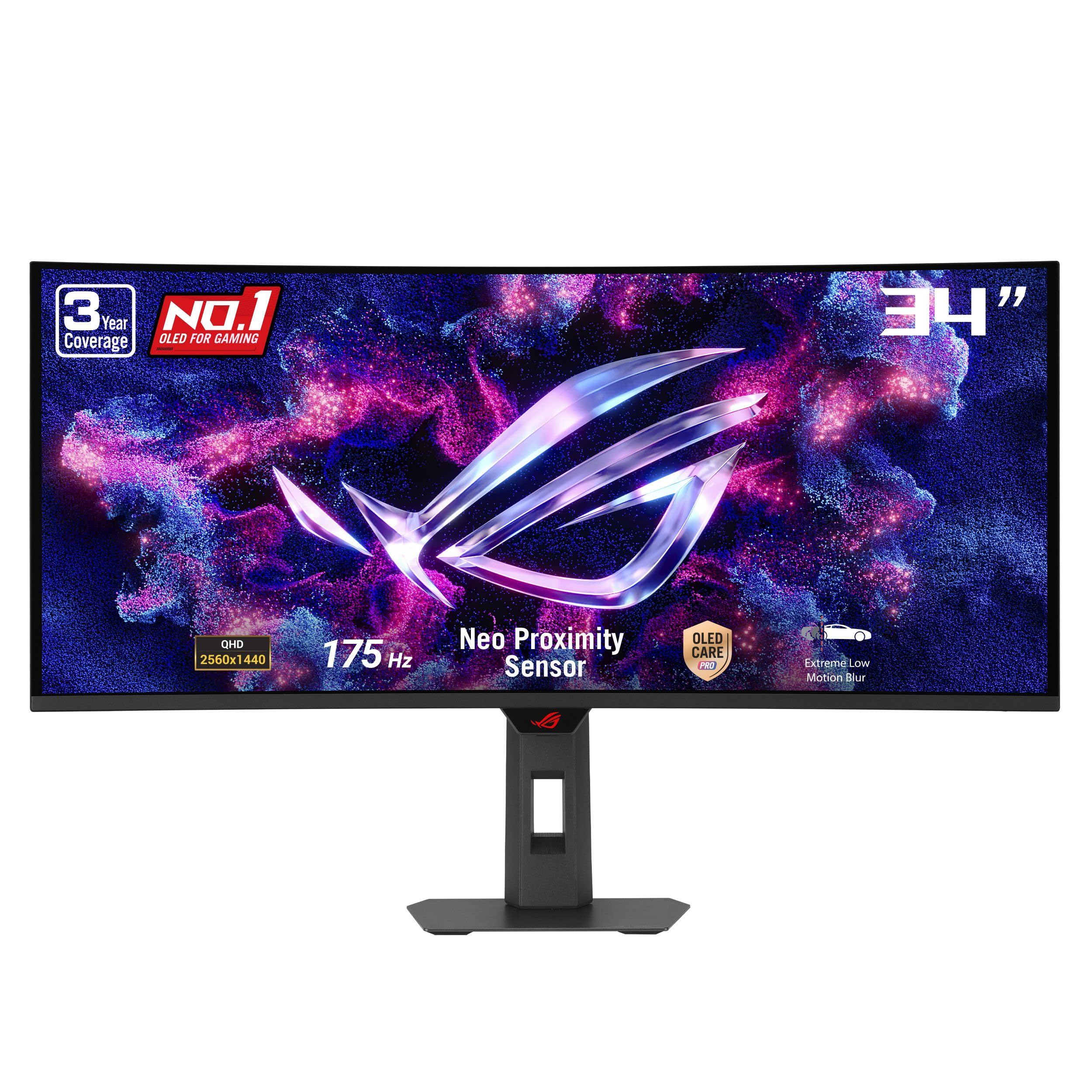
I have an ASUS laptop and I was using (my preferred size screen) 34" Curved Samsung Odyssey OLED G8 (G85SD) with similar specs which worked ok but I wanted the additional features and benefits (like GamePlus) you get with ASUS monitors so I sold my Samsung and got the XG34WCDG when it went on sale. I didn't realize this until after I had purchased but this monitor does not provide any sound functionality. I came to learn this is actually more common on the newer OLED's. To remedy this I went with the BlueAnt soundbar which pairs perfectly via USB (or Bluetooth). What I love about this monitor is that it doesn't take up nearly as much electicity as the Samsung OLED (which came with cinder block sized power bank that got very hot very quickly) and the picture quality on the XG34WCDG and HDR is really amazing and I just love. If you play a game like Mafia The Old Country the lighting and visuals are so lifelike it's incredible and stunning. I'm happy with the trade off of having a superior picture qulaity with no sound. Better picture and visuals than the Samsung and the Samsung was quite good but not this good. The curvature is perfect for me, it's well built and the monitor tilts and move up and down with ease. It's very durable. The weight is good, not too heavy and not too difficult to move or manuver around. Here's my "wish list" for ASUS for how this monitor could be even better. Saving energy is important to me and I have a real case of FOBI (fear of burn in.) That's why one of my purchasing factors was the The Neo Proximity Sensor and the Neo Proximity Sensor will just not work the way it's supposed to and I tried my hardest to get it to just work but it refuses. I tried all the settings 60 cm, 90 cm, 120 cm, and Tailored Mode. None of them worked reliably and the monitor will just shut off randomly so I had to turn it off as a solution and that is frustrating becuase I paid for a feature was a poor design and technology that is unreliable. The IR presence sensing doesn't work effectivly for it. Camera-based detection would have been much better. Another dissapointment is ELMB (Extreme Low Motion Blur) which I spent hours trying to get to work. Here's the thing:ELMB (Extreme Low Motion Blur) is an ASUS stand-out feature that ONLY works when:- The monitor is running at native resolution- At specific fixed refresh rates- With VRR / Adaptive-Sync completely disabled- And NOT in ELMB-Sync mode (if your monitor supports it)If any one of these is off, ELMB will stay greyed out.Most importantly, ELMB often ONLY works on DisplayPort, NOT HDMI.❌ USB-C → DP adapters can block ELMB❌ HDMI 2.1 sometimes blocks classic ELMBMy laptop does not have a DisplayPort connection. ELMB is impossible on my laptop. There is no cable, adapter, dock, or setting that will make it work. This is not user error and not fixable. It was never a possiblity to turn on or work for me no matter what.I forgot to mention this before regarding the sound but basic speakers you will likley NOT be able to connect to the monitor headphone jack on the XG34WCDG and here's why:On many newer ROG OLED monitors, ASUS has quietly changed behavior:The 3.5mm jack is:- Not a true analog DAC output.- Often only active in very specific input modes:- Sometimes disabled or unreliable with:- DSC- Certain HDMI/DP audio paths- HDR / high refresh modesThe headphone jack exists, but it is not a dependable analog audio output anymore. So you’re not missing a setting — this is a design limitation, not user error. What this meant for me is AUX (3.5mm) port is not an option so I had to run a longer USB cable to my USB hub instead of a very short, minimal cable from my speaker to my monitor I had initially planned for.Another grip is the monitor USB connection ports. They cannot act as a sound card or send audio to speakers. The USB ports on the XG34WCDG are designed to:Act as a USB hub for:- Keyboard- Mouse- Flash drivesPass data back to the laptop via the USB upstream cableThey do NOT:- Output audio- Enumerate USB audio devices- Provide DAC (digital-to-analog conversion)My last gripe is adjusting the brightness of the monitor is very difficult, inconvenient, and I can only adjust by hard pressing the monitor menu button. This is pretty frustrating. I did figure out a way to do it with the Monitorian application in a couple of clicks so I don't have to physiclaly press buttons, but it would be nice to assign a hotkey but the ASUS DisplayWidget Center does not work with the shortcut I created.Lastly, if you're reading this review, I will save you some time and hassle from the research I did for optimal best picture and settings to prevent burn in and for the best picture:✅ Set OLED Anti-Flicker = HIGH✅ Display color space sRGB or DCI-P3 or Wide Gamut = Use sRGB✅ HDR: Off (unless watching HDR content)✅ VRR: On (if supported)✅ Set Color Temp to: 6500K✅ Set Gamma to: 2.2✅ Set Screen Move = LIGHT✅ Set Virtual Screen = OFF✅ Pixel Cleaning: Run about once every 1,000–2,000 hours if you ever do it manually. Do NOT run it frequently.✅ Leave Uniform Brightness = OFF.✅ Set Shadow Boost = OFF✅ Aspect Control - 21:9 – FullIf you have a DisplayPort on your laptop, get a DisplayPort to DisplayPort cable. If you're like me and only have a laptop with HDMI and/or USB-C the next best option is using a StarTech USB-C to DisplayPort 1.4Ver másVer menos
21 personas la encontraron útil