




John II
7 de noviembre de 2019
Easy to clone and install
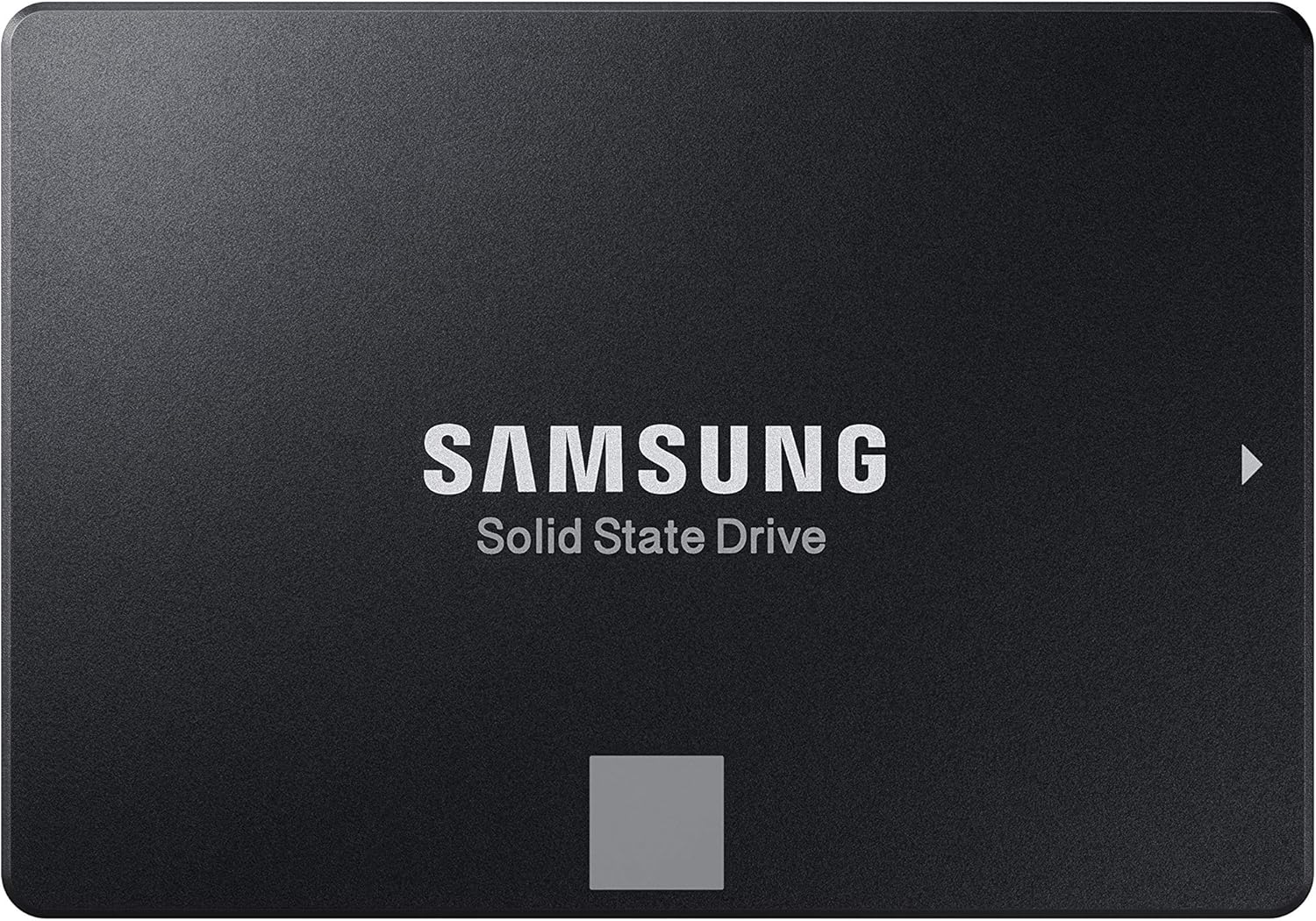
I have an older ASUS laptop that was given to me by someone who purchased a new HP. This unit had only 4GB RAM and a 500GB spinning-hard-drive. So I upgraded RAM to 8GB and bought this Samsung 860 EVO 500GB SSD to replace the old spinning-drive.This SSD arrived and I needed to buy a $7 USB-to-SATA III cable here on Amazon so I could clone the old hard drive to it. There is a lot of chatter on here about people wondering about the best ways to clone existing drives onto these SSD devices. In my case, I decided the simplest thing to do was to use something I could boot from a USB, so it wouldn't matter what operating system was on the old drive I could clone anything.So I downloaded Tuxboot and Clonezilla and ran it to install onto a USB. Super-simple process and I was ready to roll. I then hooked up the SATA end of the cable to the SSD and the other to an open USB port on the laptop, stuck the bootable USB I had just made into another and turned on power. Booted right up to Clonezilla, hit enter through every default, ensured it was using the 500GB spinning-drive for its source and the new 500GB SSD for the target, and within about a minute it was off and running. You are presented with a lot of options. I chose the simplest, device-to-device rather than doing the source-to-image, then image-to-target. Process took around 2.5 hours and then I shut down, removed the old drive from its caddy and replaced it with the SSD, hit the power switch and the system immediately booted right up to where I had left off before I cloned it!There are a lot of ways you can clone existing drives to these SSD's. You might even want to just fresh-install your system onto one of these SSD's and that's fine. I didn't want to take the time to do that. But for me, using that $7 cable I bought here on Amazon, with the Samsung EVO 860 SSD I bought here on Amazon, and free Clonezilla install-to-USB I was able to effortlessly clone the old drive to the SSD and boot right up with it without any issues whatsoever. I had zero issues.A few benefits from having gone through this:1. I now know how to clone a laptop drive to an external drive2. No more motor to spin a drive, so no more extra draw on the laptop's battery to keep one running3. No more heat from a drive motor that's constantly running4. Excellent performance and speed with this SamsungTo benchmark it for you, the laptop originally took just over two minutes to boot up. After upgrading its memory from 4GB to 8GB boot time dropped a bit, to 1.5 minutes. But after replacing the hard-drive with this SSD boot time is now 30-32 seconds, from hitting the power-switch to login. And everything else on the system is much, much faster without the extra seek times and slowness of that old spinning drive.Time will tell but so far this Samsung is functioning great, was easy to clone to, Clonezilla recognized it right away (as did Tuxboot), and it booted in my system the first time after the cloning was done. And this thing is just super-fast. Plus it's a Samsung EVO. From all I've heard and read, these are pretty reliable devices with a reliability of something like 1.5 MILLION hours. That's 62,500 days or about 171 years! Try getting that kind of reliability from a spinning hard-drive!Bottom line is these are known to be great devices. There are duds out there but by-and-large it's hard to beat a Samsung EVO device for its price-point, reliability, and performance. That's why I spent the extra $$ rather than going to a cheaper, edge-brand type SSD. I have both old and new equipment and my older stuff recognized and worked with it just fine and so far it's a screamer. I highly recommend.Ver másVer menos
14 personas la encontraron útil